Forms and fields can be particularly troublesome when it comes to remediation. Equidox is capable of remediating forms from basic layouts to complex designs. If the original follows an accessibility-minded layout, form remediation will be straightforward.
Jump to Section
- How do I remediate a field?
- What else does a well formatted Form have?
- Stamps, FreeText, and other Markup
- Tips and Tricks
How do I remediate a field?
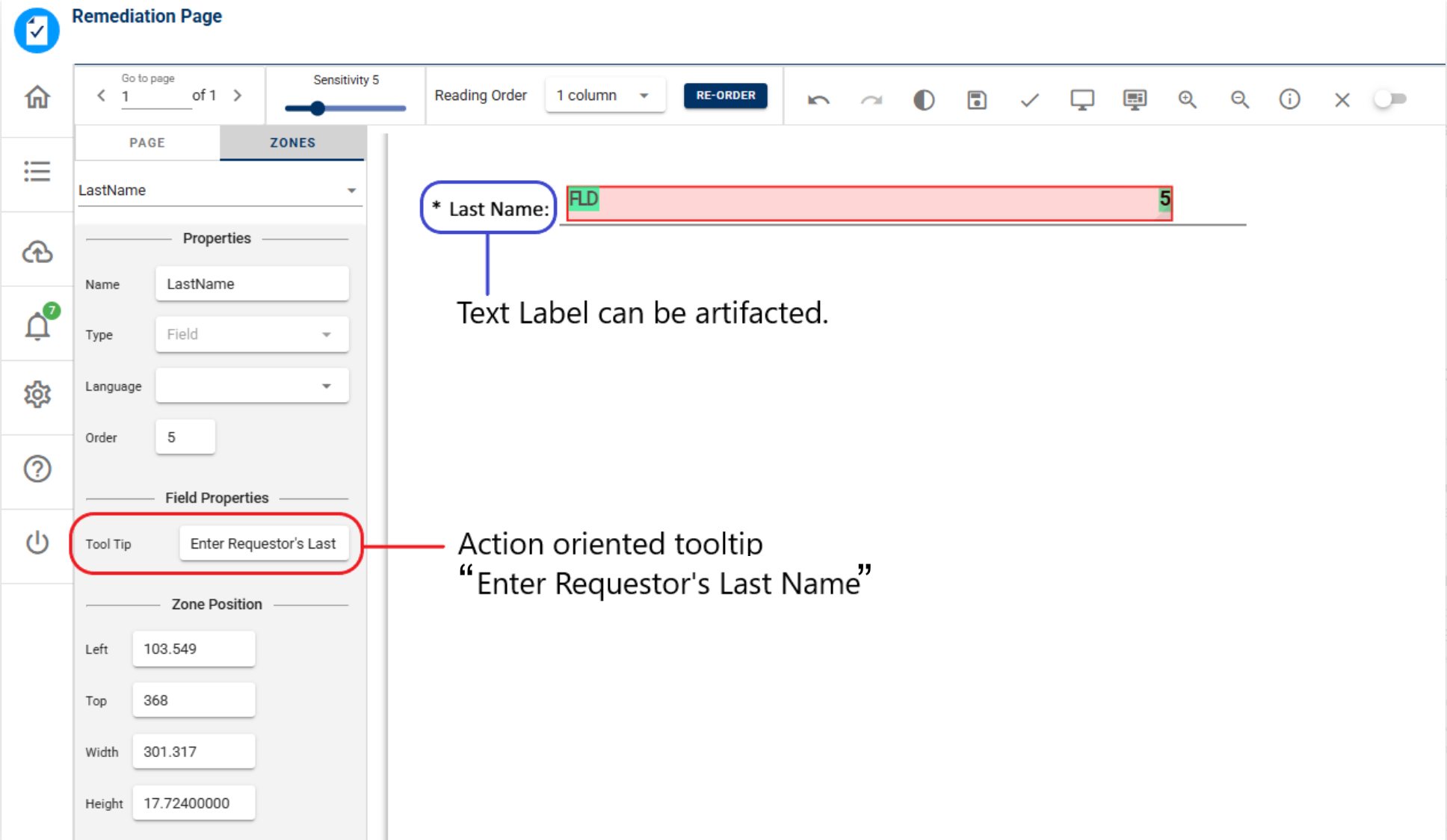
Each form field requires a tooltip. Equidox recommends using an action-oriented tooltip with a concise explanation of what the field requires.
Enter Requester’s Last Name
Enter Contact’s Last Name
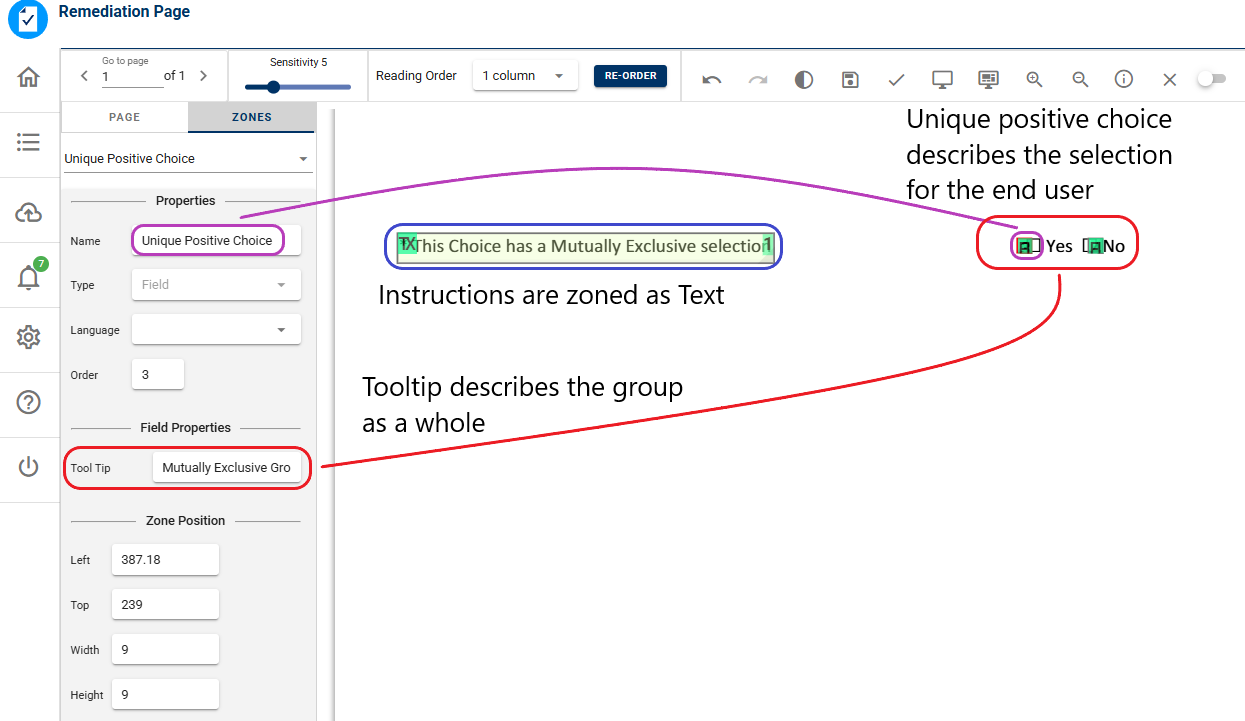
Select one of the following Days of the Week (For single option groups)
Select any of the following Days of the Week (For multi-option groups)
My form field has a text label, how do I remediate that?
Equidox recommends remediating Heading and Text instructions that exist prior to the field entry section
Text Labels that can be described using concise tooltips (as described above) should not be zoned; that text will be automatically artifacted on export
What else does a well formatted Form have?
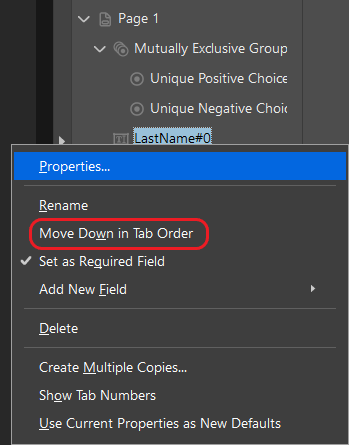
Reading order and Field Tab Order are independent
Reading order defined in Equidox will not update Field Tab Order
To guarantee correct Field Tab Order for assistive technology users, set the order in the original design application when possible or adjust in Acrobat if the original design application is unavailable
Stamps, FreeText, and other Markup
Annotation types such as stamps, widgets, and free text make floating content particularly difficult to remediate. Comment threads and review histories can carry significant meaning, and stamps are often used to convey information outside the original document structure. The options are nearly endless for the ways that floating content can be used in a PDF. Flattening and finalizing the document [with comment summarization and printed markups] is the preferred method for archival-level PDFs. Documents that contain floating content cannot be reliably remediated and are outside the scope of Equidox functionality and support.
What types of content can Equidox remediate?
Single Line Entry Fields
Multiple Line Entry Fields
Grouped Radio Buttons
Single and Grouped Checkboxes
Single and Multi-select Dropdowns
Native Acrobat Date Selector
Electronic Signature Fields
Functional Buttons like “Print,” or “Reset Form”
My document has scripting to perform calculations or other automated tasks, what does that mean for my exported PDF?
Equidox passes this type of content through to export untouched
Automated tasks are usually not accessible or compliant and might require a fundamental design change
Custom scripting for selectable content or custom formatting is generally not accessible or compliant and might require a fundamental design change.
Tips and Tricks
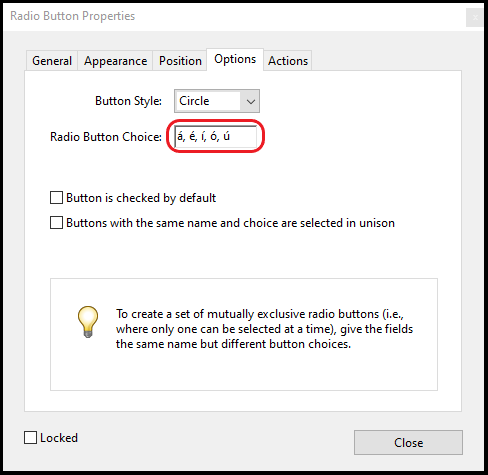
My Radio Buttons have an output warning when I export my PDF
Accented characters in the Options section of a radio button causes a reserved character interaction. Changing the Radio Button Choice value in the original solves this issue.

My imported document has a signature field that is already signed and validated
Electronically signed documents are generally locked after signing and any changes to the document, including tagging for remediation, will invalidate the signature(s). Documents should be remediated prior to obtaining signatures. Remediating after the fact requires the signature page(s) to be flattened outside of Equidox and imported as full page images. Post-signature, the pages are remediated without the dynamic form fields.
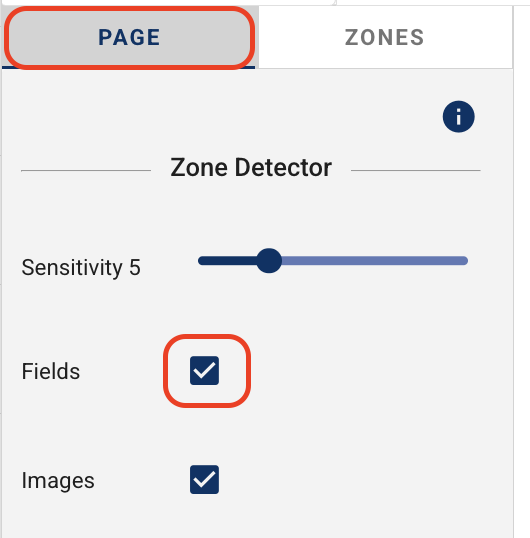
My document has fields, but I no longer want them.
Use the Fields checkbox to enable or disable ALL form fields on a page. Adding or Removing a single form field is not supported.
Was this article helpful?
That’s Great!
Thank you for your feedback
Sorry! We couldn't be helpful
Thank you for your feedback
Feedback sent
We appreciate your effort and will try to fix the article